


Introduction
AWS DevOps Agent is Amazon’s agentic AI service for cloud operations — it can investigate incidents, analyze security posture, answer questions about your infrastructure, and take limited remediation actions, all from a chat interface inside the AWS console. What makes it interesting from an engineering standpoint isn’t
just the chat UI — it’s how AWS scoped its permissions. This post walks through setting up an Agent Space end to end, breaks down exactly what access the agent is (and isn’t) granted, and shows a few concrete use cases — including one you can try yourself with the CLI.
1. What Is an Agent Space?
An Agent Space is the container that defines what a DevOps Agent instance can see and do. Every Agent Space is tied to an IAM role in your account, and that role is what actually gates the agent’s reach — the chat interface is just the front end. Before creating one, it helps to think of an Agent Space as answering three questions:
• Scope — which AWS account(s) and regions can this agent look at?
• Capability — can it only read/investigate, or can it also act (create tickets, rotate secrets, etc.)?
• Identity — which IAM role does it assume, and what does that role’s policy actually allow?
2. Step-by-Step Setup
Step 1 — Name the Agent Space and choose a response language
From the AWS DevOps Agent console, go to Agent Spaces → Create Agent Space. Give it a name (e.g. poc-agent-space), an optional description, and pick the language the agent should use when it writes findings and investigation output.
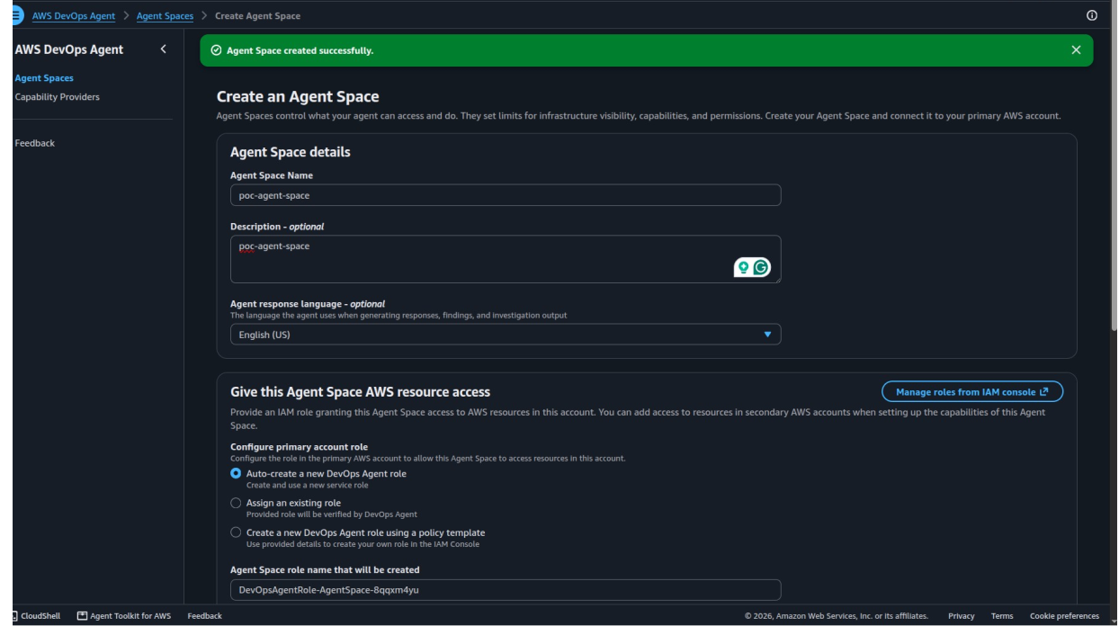
Step 2 — Grant primary-account resource access
This is the important part. You choose how the agent gets an IAM role in this account:
• Auto-create a new DevOps Agent role — AWS attaches its own predefined, least-privilege managed policy (this is the default, and what we used here).
• Assign an existing role — bring a role you’ve already scoped down yourself; DevOps Agent verifies it before use.
• Create a role from a policy template — generate a starting policy you can edit further in the IAM console before attaching.
In this walkthrough, AWS auto-created a role named DevOpsAgentRole-AgentSpace-8qqxm4yu for the agent’s backend/investigation role.
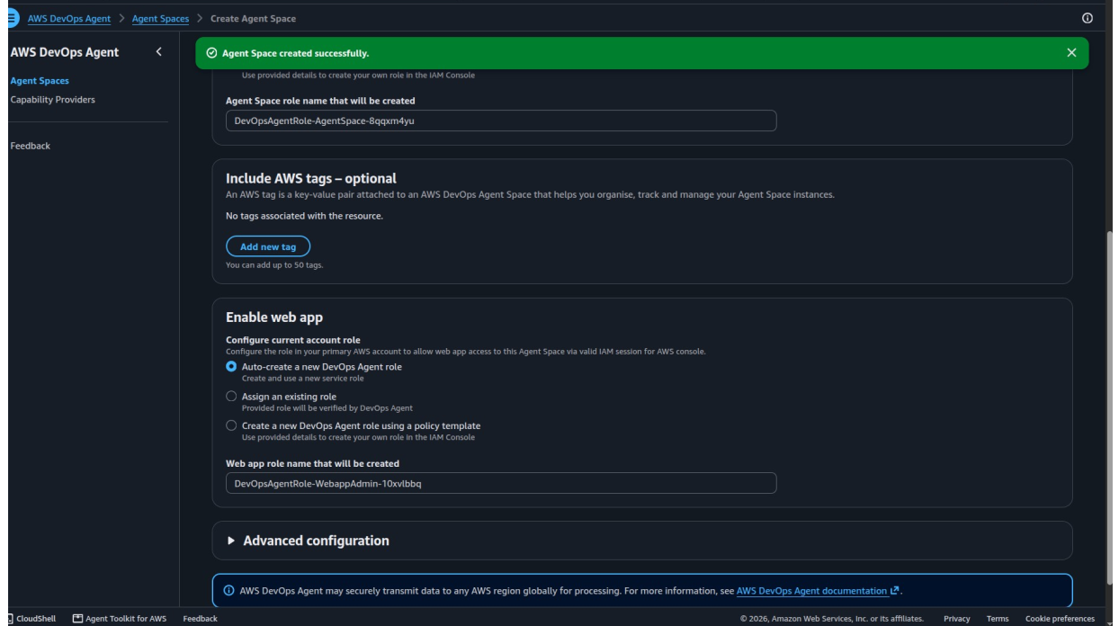
Step 3 — Tag the Agent Space (optional)
Tags are for organizing and tracking Agent Space instances only — they don’t affect permissions. You can attach up to 50 key-value pairs.
Step 4 — Enable the web app and choose its role
Separately from the investigation role, DevOps Agent creates a second role that lets a signed-in IAM user in the console interact with the agent through the web chat UI. Same three options apply — auto-create, assign existing, or template. Here it auto-created DevOpsAgentRole-WebappAdmin-10xvlbbq.
.
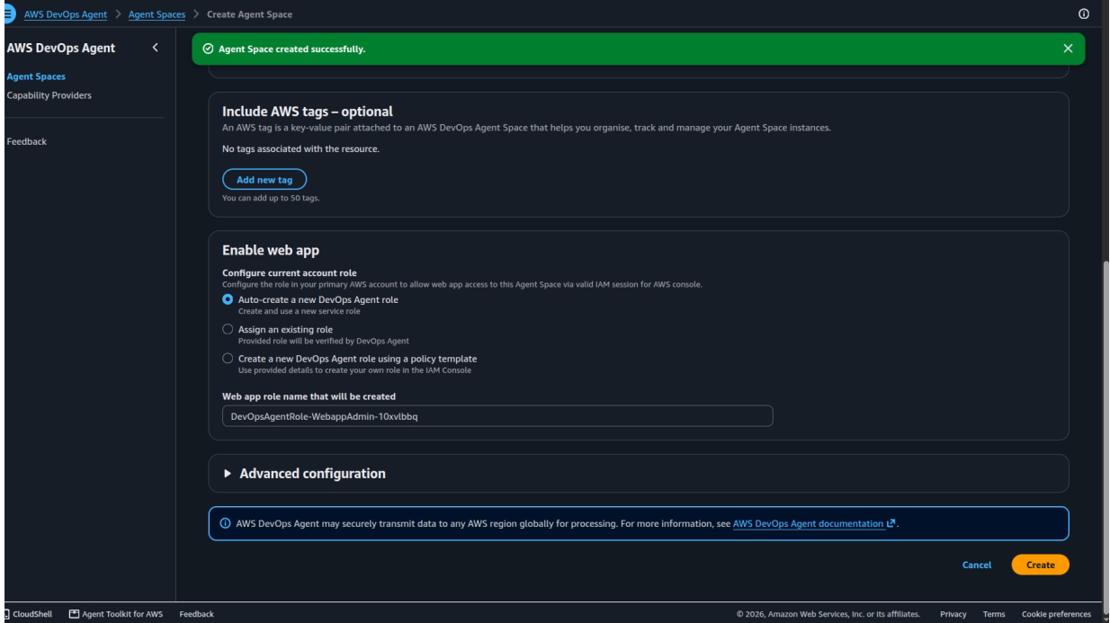
Step 5 — Review and create
The Advanced configuration section (collapsed by default) exposes any further networking or data-processing overrides. AWS DevOps Agent notes that it may transmit data to any AWS region globally for processing — worth flagging to your security/compliance reviewers before you click Create.
.
3. Least-Privilege Access, Verified
It’s easy to accept an auto-created role at face value. It’s more useful to actually open it in IAM and read what it grants — so here’s what each of the two roles really contains.
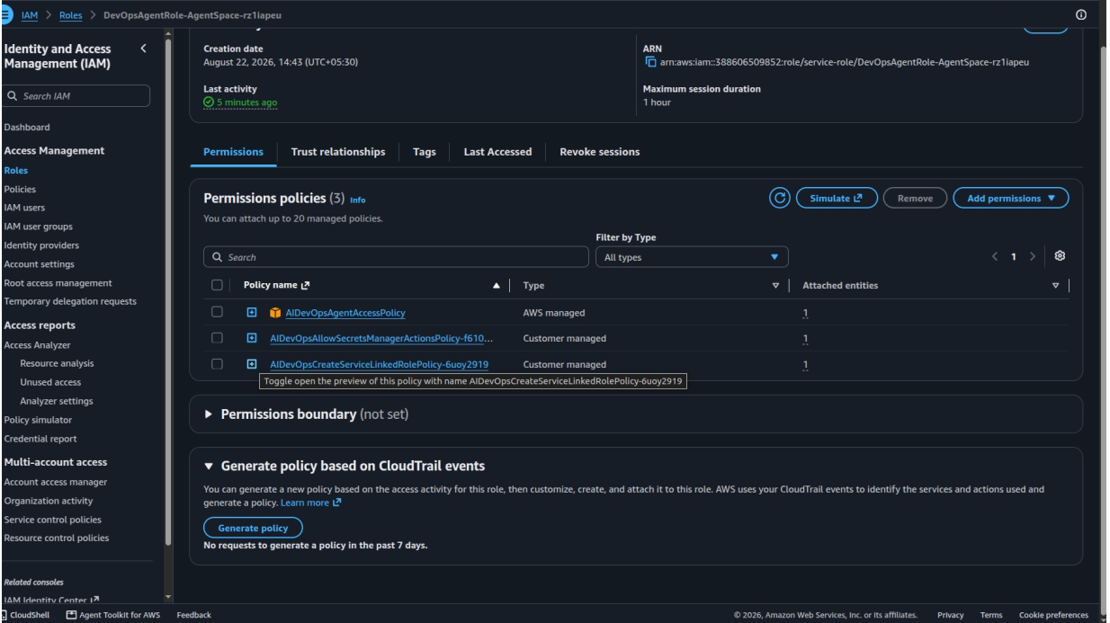
3.1 — The investigation role (AIDevOpsAgentAccessPolicy)
.
This role has three policies attached, and the pattern across all of them is the same: read by default, write only where it’s unavoidable and tightly boxed in.
• AIDevOpsAgentAccessPolicy (AWS managed) — hundreds of Describe*/Get*/List* actions across EC2, IAM, S3, Lambda, CloudWatch, GuardDuty, Security Hub, RDS, EKS, and more. This is what lets the agent “see” your environment. Only two write-capable actions exist in the entire policy: cloudtrail:StartQuery and support:CreateCase — both needed purely to run investigations and open AWS Support cases, not to modify infrastructure.
• AIDevOpsAllowSecretsManagerActionsPolicy — grants secretsmanager:GetSecretValue, but the Resource is scoped to a single secret path: arn:aws:secretsmanager:ap-south- 1:3xxxxxxxxx:secret:aidevops/<agent-space-id>/*. It cannot read any other secret in the account.• AIDevOpsCreateServiceLinkedRolePolicy — allows iam:CreateServiceLinkedRole, but only for one exact ARN (the Resource Explorer service-linked role). It cannot create arbitrary IAM roles.
{
"Sid": "AIOPSServiceWriteAccess",
"Effect": "Allow",
"Action": [
"cloudtrail:StartQuery",
"support:CreateCase"
],
"Resource": "*"
}
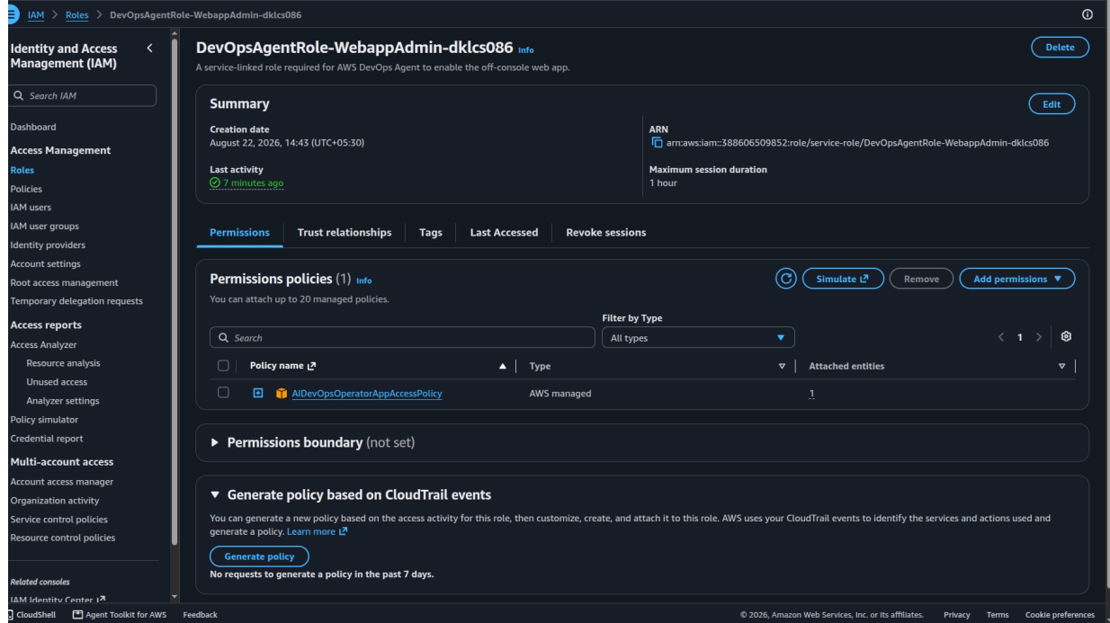
3.2 — The web app / operator role (AIDevOpsOperatorAppAccessPolicy)
.
This role is where the agent is allowed to take action — creating chats, backlog tasks, triggers, and knowledge items. But every one of those aidevops:* write actions is scoped with a condition, not a blanket allow:
"Resource": "arn:aws:aidevops:*:*:agentspace/${aws:PrincipalTag/AgentSpaceId}",
"Condition": {
"StringEquals": {
"aws:ResourceAccount": "${aws:PrincipalAccount}"
}
The ${aws:PrincipalTag/AgentSpaceId} variable means this role can only touch the one Agent Space whose ID is stamped on the caller’s session tag — not any other Agent Space in the account, even ones created later withthe same policy. The secretsmanager:CreateSecret and iam-adjacent grants here are similarly boxed to the current account via aws:ResourceAccount.

.
4. Use Cases
4.1 — Automated security gap analysis (from the console)
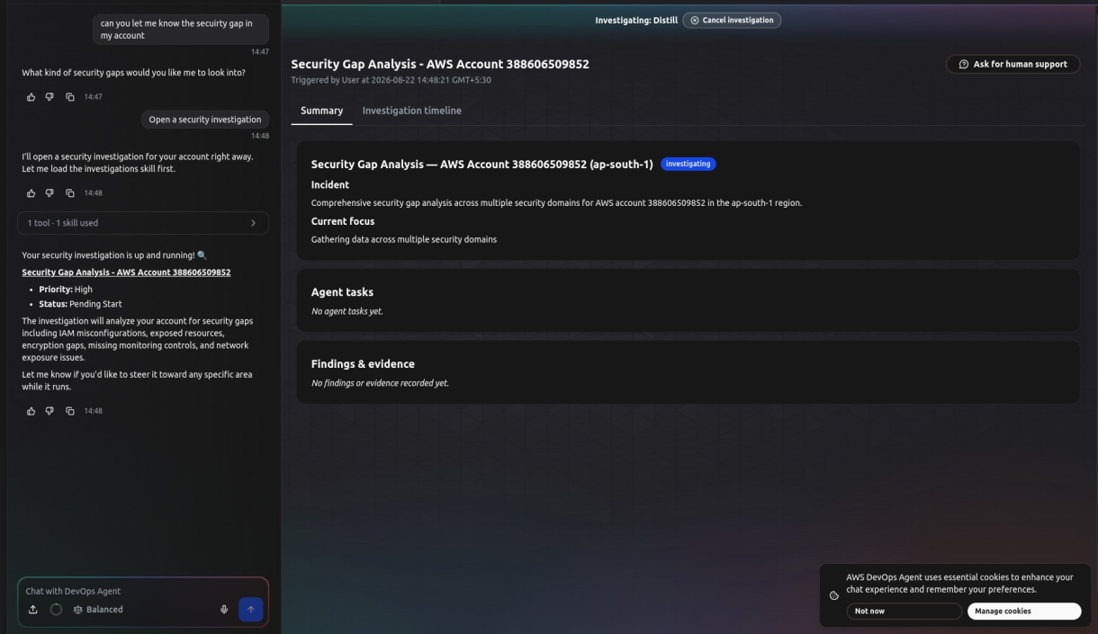
The most direct use case: ask the agent, in plain language, to review your account’s security posture.
.
Typing “can you let me know the security gap in my account” and confirming “Open a security investigation” causes the agent to spin up a tracked investigation object — visible in a side panel with a Summary, Investigation timeline, Agent tasks, and Findings & evidence sections. Behind the scenes this is powered entirely by the read-only Describe*/Get*/List* actions from AIDevOpsAgentAccessPolicy: it pulls IAM configuration, checks for exposed resources, reviews encryption and monitoring settings, and flags network exposure — all without ever needing a write permission. The investigation here is scoped to IAM misconfigurations, exposed resources, encryption gaps, missing monitoring, and network exposure, exactly the categories you’d expect from a Security Hub-style review.
4.2 — Incident timeline reconstruction
When something breaks, the agent can correlate CloudTrail and CloudWatch Logs to build a timeline — “who changed the security group on i-0123… in the last 24 hours, and what happened right after?” This relies on cloudtrail:LookupEvents, cloudtrail:StartQuery, and logs:FilterLogEvents/GetLogEvents, all already granted read-side. Equivalent CLI calls:
# Find who touched a security group recently
aws cloudtrail lookup-events
--lookup-attributes
AttributeKey=EventName,AttributeValue=AuthorizeSecurityGroupIngress
--start-time 2026-09-06T00:00:00Z
# Pull matching application log lines around the same window
aws logs filter-log-events
--log-group-name /app/production
--start-time 1725580800000 --end-time 1725667200000
--filter-pattern "ERROR"
5. Best Practices Checklist
1. Keep the investigation role and the web-app/operator role separate — never merge them into one.
2. Scope any custom write action to a specific resource ARN or a condition key (aws:ResourceAccount, principal tags) — never Resource: “*” for a write.
3. Re-run Access Analyzer’s policy generation against real CloudTrail data every quarter and prune unused actions.
4. Restrict Secrets Manager access to a path prefix scoped to the Agent Space ID, not the whole secrets namespace.
5. Review the “may transmit data to any AWS region globally” notice with your compliance team before enabling the web app in regulated environments.
Conclusion
The AWS DevOps Agent setup flow looks like a simple three-screen wizard, but the IAM design behind it is the part worth studying: a near-total read footprint for visibility, a two-action write allowance for the agentitself, and every operator-facing write action locked to one Agent Space via a session tag condition. Whether or not you use AWS DevOps Agent specifically, that read-broad/write-narrow/condition-scoped pattern is a solid template for any agentic tool you give account access to.